Resize Image to Exact Pixels or Percent
Change an image’s width and height in pixels or by percentage. The aspect ratio stays locked unless you choose otherwise.
- Free, no signup
- Files stay on your device
- No watermark
See it in action
A 2,576 × 1,717 photo of fresh apples, resized to 1,200 pixels wide for a website.
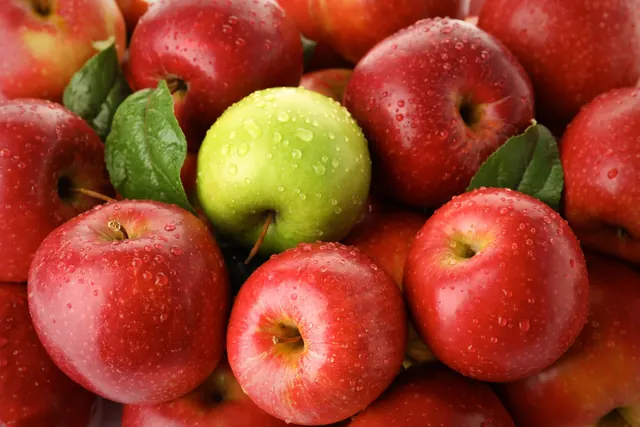
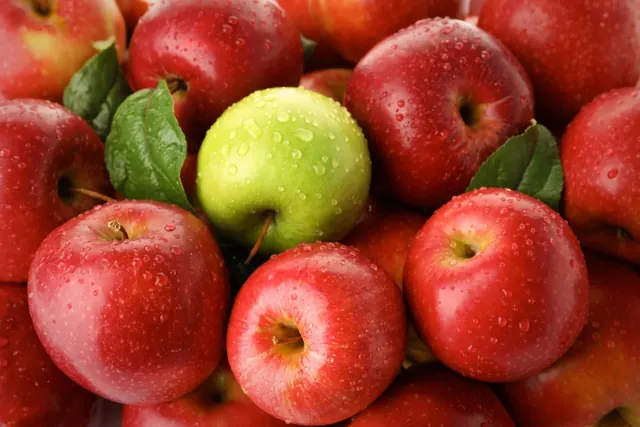
- 59% smaller
- 2,576 × 1,717 → 1,200 × 800 px
Actual output of this tool, measured on 16 October 2026. Sample image used under licence.
How to use it
- Add your images.
- Enter a width and/or height, or a percentage.
- Choose how to handle the shape, press Resize and download.
What Resize Image does
Scales each image to new pixel dimensions using high-quality resampling, keeping the original format.
When to use it
- A website or form asks for an image of a specific size.
- Photos are much larger than needed for email or the web.
- You need several images at the same width.
Good to know
- “Fit inside” keeps the shape and makes the image no larger than your width and height. “Fill and crop” fills the exact size, trimming the edges. “Pad” fills the exact size with a background color.
- Enlarging adds pixels but not detail; for real enlargement, try the AI Image Upscaler.
- JPG and WebP are re-encoded at high quality (92); PNG stays lossless.
Pixels vs percentage
Use pixels when a website or form names exact dimensions, such as 1200 × 630. Use a percentage to shrink by the same proportion whatever the original size; 50% turns 4000 × 3000 into 2000 × 1500.
Why images stretch, and how to avoid it
Stretching happens when width and height change by different proportions. Keep proportions on and set just one side, or choose “Fill and crop” or “Pad” when you need an exact shape. See How to Resize an Image Without Stretching It.
Resize vs crop vs AI upscale
Resize scales the whole picture. Crop Image cuts part of it away. Making a small image larger with a normal resize only stretches pixels; AI Image Upscaler predicts new detail instead.
Dimensions and file size
File size falls roughly with the number of pixels: halving width and height leaves a quarter of the pixels. After resizing, Compress Image can shrink the file further.
Privacy
Your files are processed inside your browser and not uploaded to any server. Closing or refreshing the page clears them. We don’t keep copies.
Limitations
- Up to 10 files per batch, 50 MB each.
- Maximum output is 16,384 pixels per side.
Frequently asked questions
Will my image be stretched?
No, not unless you unlock the aspect ratio and choose “Stretch”. The default keeps the proportions.
Does resizing reduce file size?
Making an image smaller in pixels usually reduces file size a lot. For more savings, compress it afterwards.
Should I resize by pixels or percent?
Use Pixels when a website or form asks for an exact size, such as 1200 × 800. Use Percent to shrink an image proportionally, such as to 50%.
What do Fit, Fill and crop, and Pad mean?
Fit keeps the whole image inside the size you set. Fill and crop fills the exact size and trims the edges. Pad fills the exact size and adds a background color around the image.