Anime & Illustration Upscaler (2× / 4×)
Enlarge anime, cartoons, line art and digital illustrations with an AI model made for artwork. Lines stay crisp and flat colors stay flat.
- Free, no signup
- Files stay on your device
- No watermark
See it in action
An anime-style illustration of a ronin at sunset, enlarged 4× with this tool.
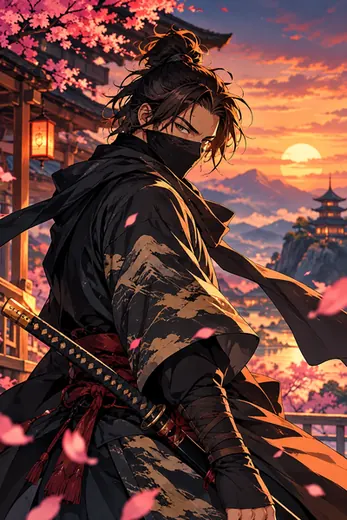
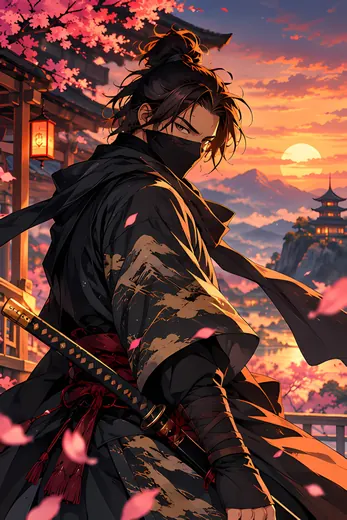
Zoomed to 100%: the same 4× enlargement with standard resizing and with this AI tool
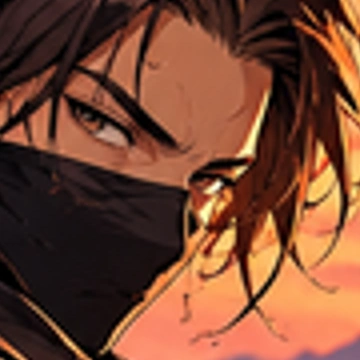
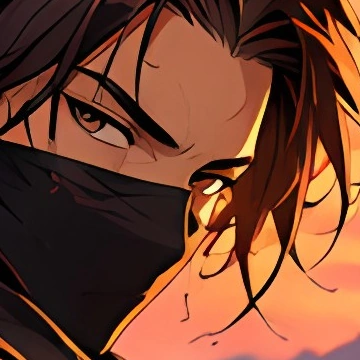
- 4× larger: 400 × 600 → 1,600 × 2,400
- Crisp outlines in the hair, eyes and sword grip
- Ran on the device, nothing uploaded
Standard resizing blends neighbouring pixels, so outlines turn soft. The anime model redraws clean edges and keeps flat colors flat.
Actual output of this tool, run on 17 October 2026. Illustration created by the site owner with an AI image generator for this demo.
How to use it
- Drop your anime, cartoon or illustration in, or choose it.
- Choose 2× or 4×. The artwork model downloads the first time and is then reused.
- Compare before and after with the slider, then download as PNG, JPG or WebP.
Made for artwork, not photos
Illustrations are built from clean outlines and flat areas of color. A general photo upscaler tends to add texture that isn’t meant to be there. This tool uses a model trained on artwork, so it sharpens lines, removes JPEG blockiness from flat colors and keeps gradients smooth.
What it works best on
- Anime screenshots, fan art and character art
- Cartoons and comics
- Line art and sketches with clean strokes
- Flat vector-style graphics, icons and stickers (transparency is kept)
When to use the photo upscaler instead
For photographs, painted artwork with heavy texture, or realistic 3D renders, the AI Image Upscaler in Photo mode usually looks more natural. You can switch modes on either page, so try both on the same image if you’re unsure.
Your artwork is processed on your device
The model runs in your browser; your artwork isn’t uploaded. The model file (about 9 MB) downloads once and is saved for next time.
Limits
- Very thin, faint lines can be thickened or broken. Compare at 100% before using the result.
- Small text and tiny details can be redrawn incorrectly.
- Output size depends on your device’s memory; if 4× is too large, we suggest 2×.
Frequently asked questions
Is this free?
Yes: 2× and 4×, PNG, JPG and WebP downloads, no signup and no watermark.
Will it keep a transparent background?
Yes, if you save as PNG or WebP. JPG has no transparency.
Why does it look different from the photo upscaler?
It’s a different model, trained on artwork. It favors clean lines and flat color over photographic texture.
Can I use it for photos?
It works, but the artwork model can make photos look painted. For photos, use the AI Image Upscaler, which uses a model trained on real-world images.