AI Image Upscaler – 2× and 4×, On Your Device
Enlarge photos, PNG graphics and illustrations 2× or 4× with AI. It’s free, with no signup and no watermark, and it all runs in your browser.
- Free, no signup
- Files stay on your device
- No watermark
See it in action
A small photo of a leopard, enlarged 4× with this tool.
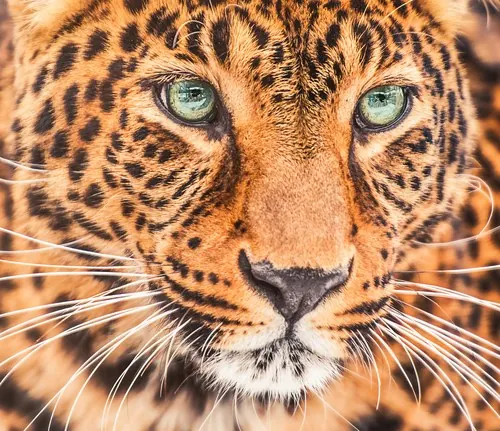
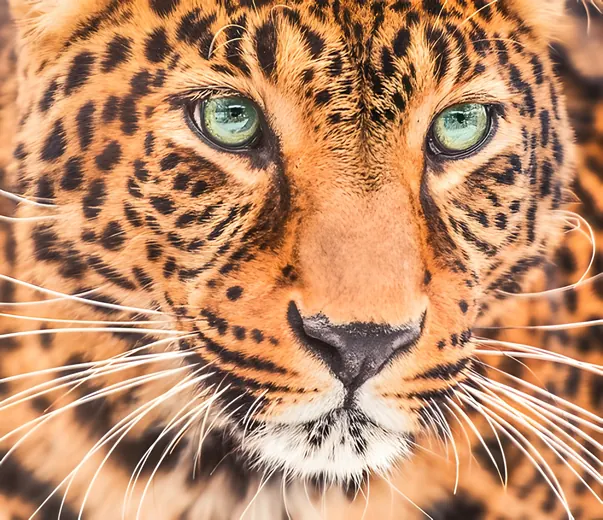
Zoomed to 100%: the same 4× enlargement with standard resizing and with this AI tool
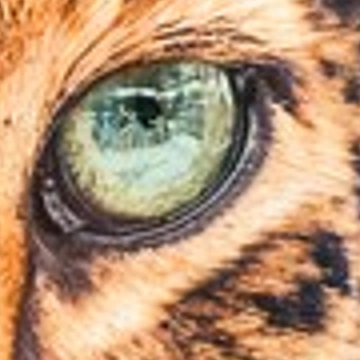
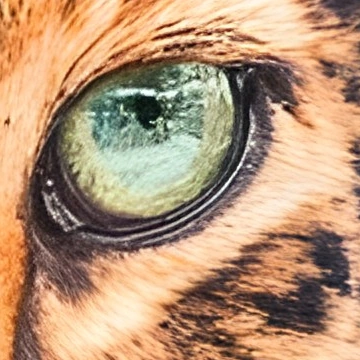
- 4× larger: 500 × 431 → 2,000 × 1,724
- Sharper eye outline, fur and whiskers
- Ran on the device, nothing uploaded
Standard resizing spreads the existing pixels, so fur and whiskers go soft. The AI model predicts fine texture and edges at the larger size. It can’t recover detail that was never captured.
Actual output of this tool, run on 17 October 2026. Sample photo used under licence.
How to use it
- Drop a JPG, PNG or WebP image in, or choose it.
- Choose 2× or 4×. The AI model downloads the first time and is then reused.
- Wait for the progress bar, compare before and after with the slider, then download as PNG, JPG or WebP.
How AI upscaling differs from ordinary resizing
An ordinary resize stretches the pixels you already have, so a small image becomes a bigger blurry one. An AI upscaler uses a model trained on many pairs of low- and high-resolution images to predict sharper edges and finer texture at the larger size. Along the way it also reduces JPEG blockiness and moderate noise. The result is a prediction, not a recovery: check it at 100% before you use it.
What you can upscale
- Photos: portraits, landscapes, buildings, product shots and compressed JPEGs. Use Photo mode.
- Transparent PNGs: cut-outs, stickers and logos keep their transparency, with the edges upscaled by the AI too. Save as PNG or WebP.
- Low-resolution images: thumbnails and small web pictures. 4× turns 500 × 500 into 2000 × 2000.
- Illustrations and graphics: artwork, cartoons and line art. Graphic mode keeps outlines crisp and colors flat.
Choosing the right settings
2× or 4×. 4× suits small images, such as thumbnails and old web pictures. 2× suits images that are already medium-sized, and makes much smaller files.
Standard or High Detail. Standard is quick and works well on phones, for cleaning up compressed JPEGs, and for old black-and-white photos. High Detail gives more natural texture in hair, fur, landscapes and buildings, but takes longer and downloads a larger AI model the first time. Graphic mode always uses its own model made for artwork.
Your image is processed on your device
The AI runs inside your browser. Only the AI model (from Hugging Face) and the code that runs it are downloaded; your image isn’t sent to our servers or to any AI service. Analytics count anonymous events such as “4× selected”, never your image, its filename or its metadata.
What to expect
- AI predicts detail; it can’t recover detail that was never captured. Heavily blurred or out-of-focus photos won’t become sharp.
- Very small faces and very small text can come out looking different, or with letters that look real but are wrong. Check names, numbers and faces before using the result.
- The largest image you can create depends on your device’s memory. If a size is too large, we tell you before you start and suggest 2× instead.
- Without GPU support (WebGPU) in your browser, processing is much slower and High Detail may not be available for larger images.
Frequently asked questions
Can I upscale an image 4× for free?
Yes. 2× and 4×, Standard and High Detail, Photo and Graphic, and JPG, PNG and WebP downloads are all free, with no signup and no watermark. The only limits are technical: your device has to be able to hold the enlarged image.
Will transparency be preserved?
Yes, if you save as PNG or WebP. JPG has no transparency, so transparent areas become white; we remind you when that applies.
Does AI upscaling remove noise or JPEG artefacts?
It reduces moderate noise and compression artefacts as part of upscaling. With very heavy noise, some fine detail can be smoothed away along with it.
Can it fix a blurry photo?
It can make slightly soft edges crisper. It can’t fix motion blur or an out-of-focus photo.
Should I use Standard or High Detail?
On a computer, try High Detail for textured photos. Use Standard on phones, for quick results, and for old or soft black-and-white photos.
Why can very small faces or text look different?
When a face or a word is only a few pixels across, the AI has to guess what it looked like. The guess can look unnatural, or produce letters that look sharp but are wrong.
Which output format should I choose?
JPG for photos (high quality, 90), WebP for the smallest file where your browser can create it, and PNG for graphics and anything transparent.