Compress JPG Images
Shrink JPG photos with a quality slider. You’ll see the new size of every file before you download.
- Free, no signup
- Files stay on your device
- No watermark
See it in action
A close-up of a leopard, full of fine fur and whiskers.
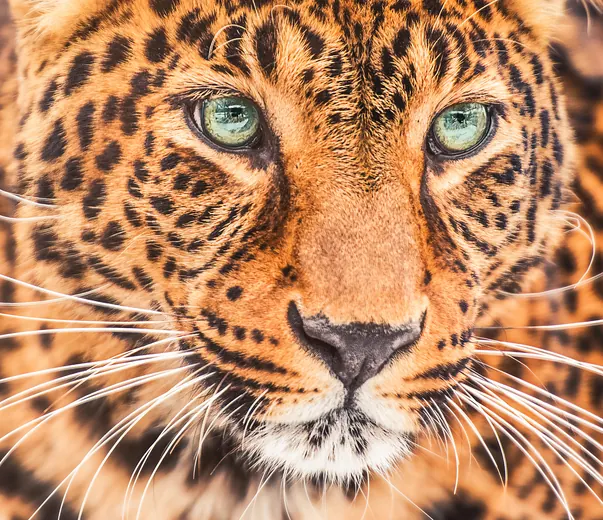
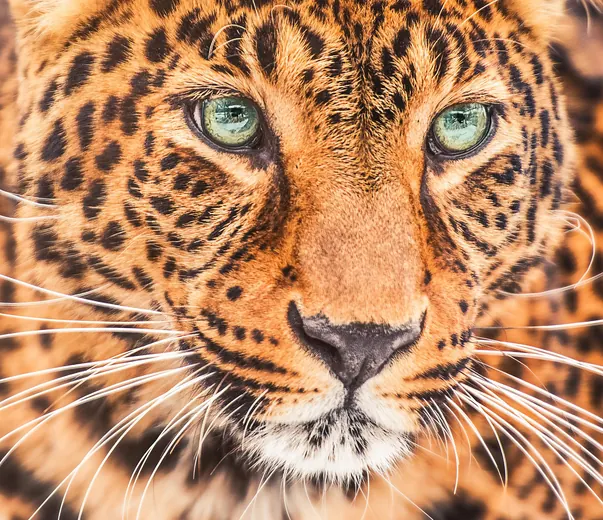
Zoomed to 100%: the same spot before and after
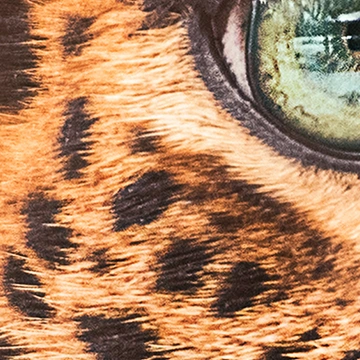
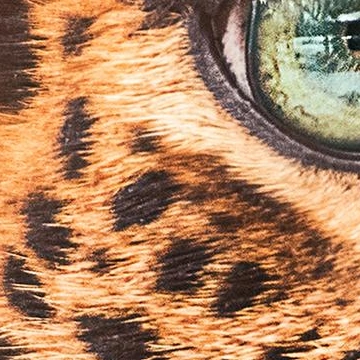
- 81% smaller
- Same 2,000 × 1,725 pixels
Actual output of this tool, measured on 16 October 2026. Sample image used under licence.
How to use it
- Add your JPGs.
- Set quality.
- Compress and download.
What Compress JPG does
Re-encodes each JPG at the quality you choose. Lower quality means a smaller file and more visible compression.
When to use it
- Photos straight from a phone or camera are several megabytes each.
- A website asks for smaller images.
Good to know
- Quality 70–80 is a good range for web use; 85–90 for keeping photos looking their best.
- Resizing a large photo down saves far more than lowering quality, so combine with Resize Image if the dimensions are large.
- EXIF metadata, including location, is not carried over.
Quality vs file size
JPEG quality runs from 1 to 100. Between about 90 and 75, files shrink a lot while photos look the same at normal size. Below about 60, artefacts appear: blocky skies, smeared texture, halos around text.
Repeated compression
Each time a JPG is compressed again, a little more detail is lost. Keep the original and compress once, from the best copy you have.
Compress or resize?
If the photo is far larger in pixels than it will be shown, Resize Image saves much more than lowering quality. For a strict size limit, use Compress to KB. Background: How to Reduce Image File Size Without Making It Look Bad.
Privacy
Your files are processed inside your browser and not uploaded to any server. Closing or refreshing the page clears them. We don’t keep copies.
Limitations
- Up to 10 files per batch, 50 MB each.
Frequently asked questions
Why didn’t my file get smaller?
It was probably already compressed more strongly than the quality you chose. We keep the original in that case.
What does the quality number mean?
JPG quality (1–100) controls how much fine detail the encoder may discard. The default is 75. Lower numbers give smaller files; below about 60, edges and gradients start to show blocky artefacts.
Will compressing the same JPG again keep shrinking it?
Each lossy save throws away a little more detail, and the savings get smaller each time. For the best result, always compress from the original photo rather than an already compressed copy.
Does compression remove the photo’s EXIF data?
Yes. The compressed file is newly encoded and doesn’t carry over the original EXIF metadata, such as camera details or GPS location.