Compress Images (JPG, PNG, WebP)
Make JPG, PNG and WebP images smaller. Each result shows the size before and after, and the original stays available.
- Free, no signup
- Files stay on your device
- No watermark
See it in action
A photo of fresh apples with water droplets, already saved for the web at 469 KB.
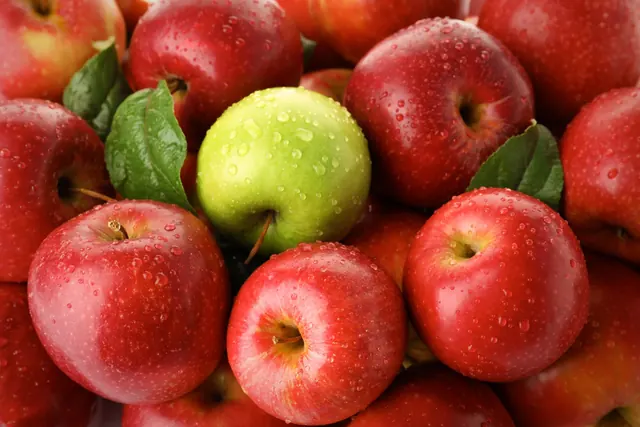
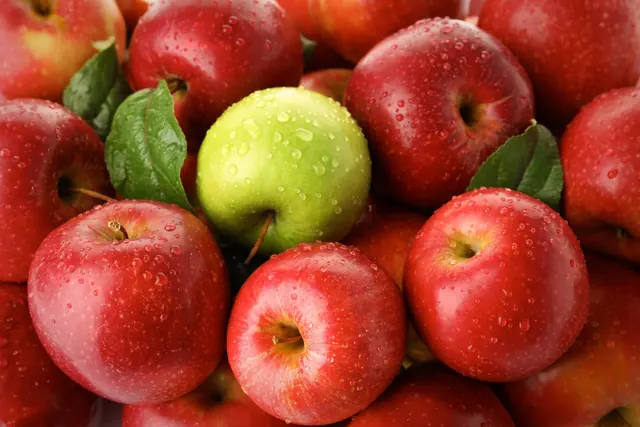
Zoomed to 100%: the same spot before and after
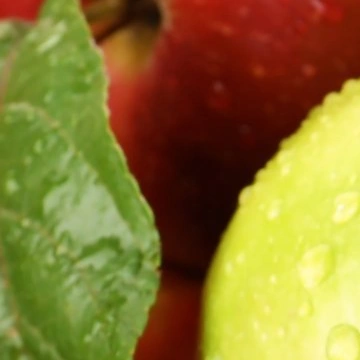
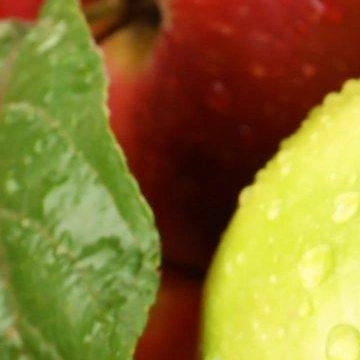
- 15% smaller
- Same 2,576 × 1,717 pixels
This photo had already been compressed once, so the saving is modest. Camera originals usually shrink far more; for a hard size limit, use Compress to KB.
Actual output of this tool, measured on 16 October 2026. Sample image used under licence.
How to use it
- Add your images.
- Adjust the quality, or keep the default.
- Press Compress, check the savings, and download.
What Compress Image does
Re-encodes each image with stronger compression. JPG and WebP use the quality you set; PNGs are reduced to an optimized color palette, which is lossy but usually invisible for graphics.
When to use it
- An email or upload form rejects your file as too large.
- Images are slowing down your website.
- You want to save storage space.
Good to know
- Compression here is lossy: some detail is removed. At the default setting (75), photos usually look the same at normal viewing size.
- If a compressed file wouldn’t be smaller than the original, we keep the original and tell you.
- Switching a photo to WebP usually gives the smallest file.
Privacy
Your files are processed inside your browser and not uploaded to any server. Closing or refreshing the page clears them. We don’t keep copies.
Limitations
- Up to 10 files per batch, 50 MB each.
- Animated images are compressed as their first frame.
Frequently asked questions
Is this lossless?
No. Lossless re-saving rarely makes photos smaller, so this tool uses lossy compression and tells you the result. For PNG-specific lossless options, use Compress PNG.
How small can I get it?
It depends on the image. If you need a specific maximum size, use Compress to KB, which searches for the best quality that fits.
What quality setting should I use?
The default of 75 is a good balance for photos. Try 60–70 when you need a smaller file for email or a website, and 85 or higher when detail matters most. The preview shows the result before you download.
Can I change the format while compressing?
Yes. Keep the original format, or save as JPG, WebP or PNG. For photos, WebP is often the smallest; for graphics with transparency, keep PNG or choose WebP.
How many images can I compress at once?
Up to 10 images per batch, 50 MB each. Download them one by one or together as a ZIP.