About this tool
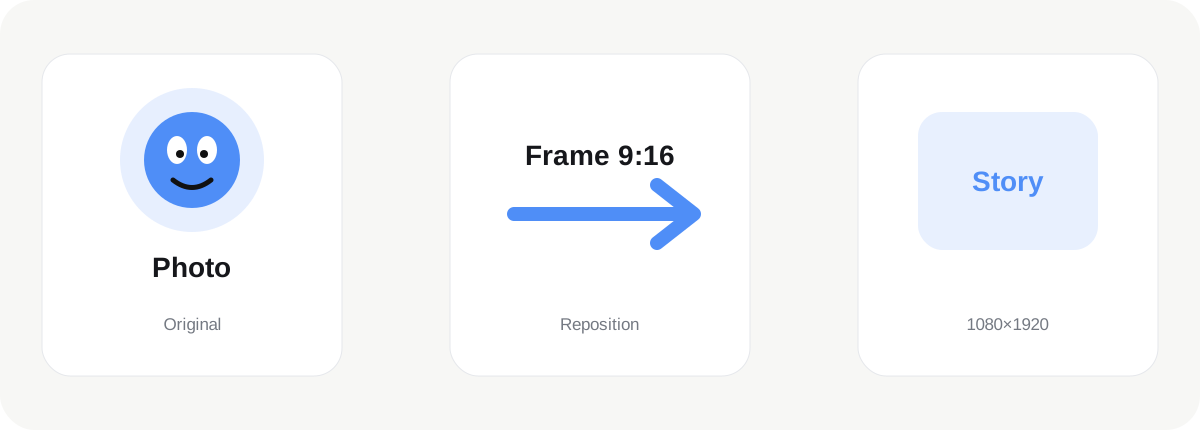
Story & Reel Image Resizer is designed around one practical job: prepare up to 20 images for a vertical 9:16 story or reel frame. The tool page keeps the editing controls close to the preview so you can see what is changing instead of working through a long sequence of separate steps. For supported operations, the result is generated directly in the browser and the page shows useful output information before you download.
How it works
You can add up to 20 images on this page. Preserve quality and format can remain in the queue, while pan and zoom settings are stored per image so each composition can be adjusted individually. Each item stays visible in the queue, so it is easier to move through a complete set without repeatedly leaving the tool and uploading another file. The currently selected image opens in the main preview, while result size or dimensions are stored with the image after processing.
Working with multiple images
Multi-image support is most helpful when one rule can be reused, but some visual tasks still need individual judgment. A watermark or compression level can often be applied consistently across a set, while a crop or social-media composition may need different positioning for every image. The interface keeps those differences visible instead of pretending every batch task is identical.
Quality and output
The browser-based approach means common image processing can happen on your device without uploading every file to our server. This can be useful for personal photography, product images, client assets and internal business material. Processing twenty very large images can still use significant memory, especially on older phones or laptops, so smaller groups may be more comfortable when files are extremely high resolution.
Privacy and practical use
Prepare up to 20 images for a vertical 9:16 story or reel frame should always be guided by the final destination. A website may prioritize file size and loading speed, a social platform may require a fixed aspect ratio, and a document workflow may need exact dimensions. Review the generated result rather than relying only on the control values, and keep the original source file when the image is important.
Before you download
JPGtoPNGnow is intentionally focused on quick image work. Professional applications remain better for layers, masks, detailed retouching and color-managed production. These tools are for the jobs that should take seconds: upload, adjust, review the result and download. Keeping the original source gives you freedom to create a different version later without repeatedly modifying an already processed file.
A useful final check is to open the downloaded result before deleting or moving the original. Different browsers and platforms can scale or recompress images after upload, so the destination can affect how the final file looks. Keeping the source image gives you a reliable master for future versions and avoids repeatedly editing an already processed copy.